LMS notifications
A very popular topic in LMS is notifications. There are many possible configurations.
In this blog, I’ll try to address as many doubts as possible.
- Notifications Map at SAP HELP
- Automatic Process Templates
- Notifications scenarios
- Sending Email Reminders for Pending Program Assignments
- How to Disable Specific Notifications (E-Mails) from Sending in SuccessFactors Learning?
- Item Notifications
- Program Notifications
- Assignment profile Notifications
- Learning Plan Email Notification Settings
- While sending Preview Email the error "An application error occurred" is shown
- Learning Expiration Email Notification
- Periodic SAP SuccessFactors Learning Reminder Email Notifications
- LMS Custom SMTP
- Virtual Learning Service VLS Notifications
- PDF MANUAL: Managing Learning Notification Templates
Notifications Map at SAP HELP
Notifications are managed though templates. When the conditions are reached, the templates are triggered.
At SAP HELP there is a huge map or list with all the LMS templates.
Can be filtered by “Trigger,” “Recipient,” or “Template ID.” (below link)

Automatic Process Templates
SAP SuccessFactors Learning administrators, users, and managers receive email messages based on these templates when an automatic process manager (APM) completes its job.
Notifications scenarios
https://me.sap.com/notes/2302153
Sending Email Reminders for Pending Program Assignments
How to Disable Specific Notifications (E-Mails) from Sending in SuccessFactors Learning?
Basically is to delete the content of the template. (KBA 2440341)
The only way to configure a notification that is not sent via an automatic process but sent to an action such as a “user registering to a class” is to remove the subject and body information of the notification.
When the body and subject are removed, the LMS does not send notifications, but this impacts everyone. > source
Take care of header and footer. In case of any set, the email will trigger anyhow. (KBA 2465674)
There are many notification templates in the system. If you do not know which is the notification, start by checking the User Assistance Documentation (login may be required) to check on what might be the Template ID.
Let’s do it!
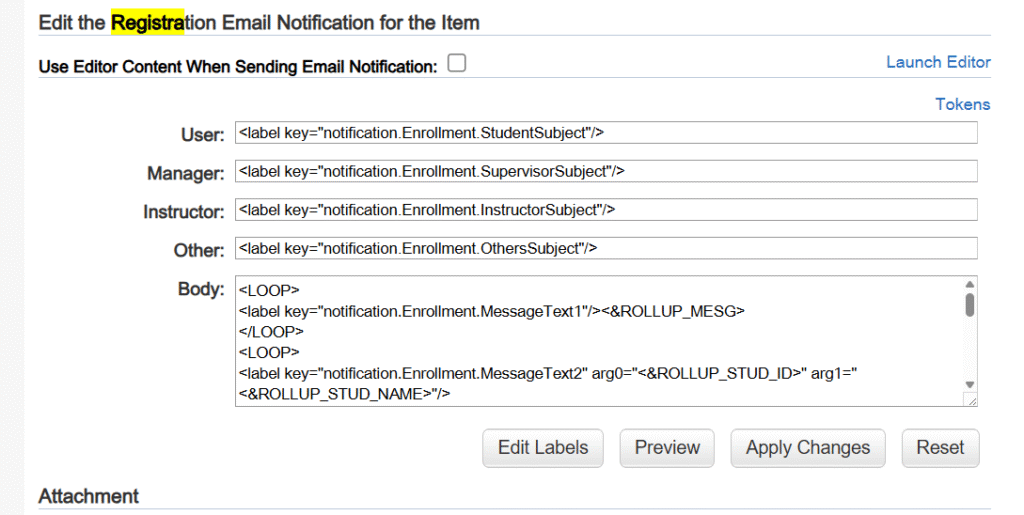
After finding the Template ID, the Subject and Body fields of the Email Notification Template need to be deleted.
- Proceed to Learning Administration >
- Go to System Administration > Manage Email > Email Notification Templates >
- Search for the Template ID or description >
- Edit the Template > Choose the Messages tab >
- Make sure to uncheck the “Use Editor Content When Sending Email Notifications” if this is checked >
- Make a backup of the Body and Subject if the Email Notification Template has been modified from the out-of-box version >
- Delete all the text in the Body and Subject section >
- Click Apply Changes.
Item Notifications
Creating custom notifications for items in Learning Administration
The notifications are sent to those who are associated with a class of the item.
https://me.sap.com/notes/2274848
Notifications only when item is added
Check this point
2179206 – After updating the Learning Plan Notification Settings, users are still not receiving notifications
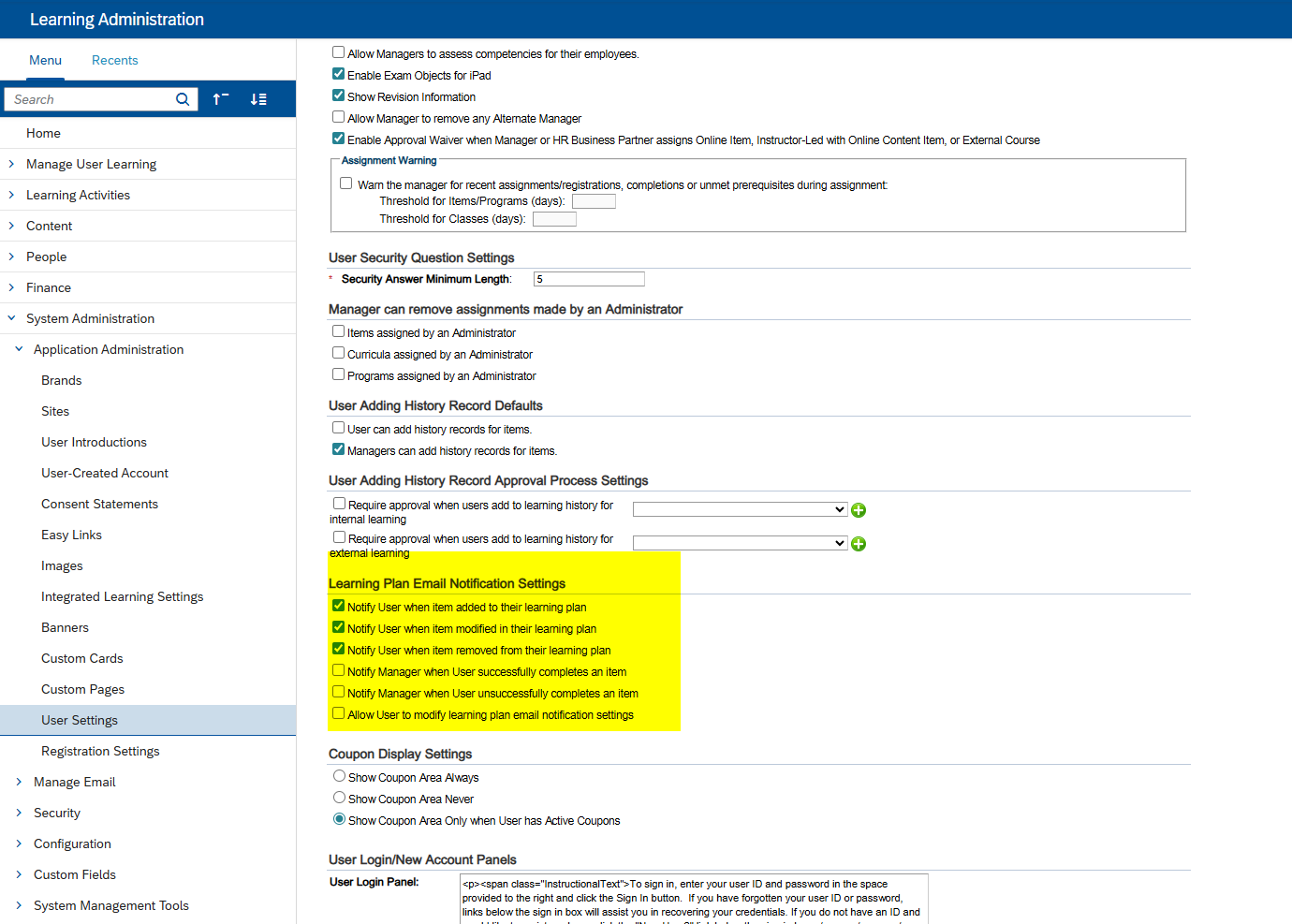
ATM >>>>>>>>>>>>>>>>> Learning Plan Email Notification:
- The learning plan notification automatic process sends notifications to users when an item from the user’s learning plan is added, removed, or modified, and to managers when a learning event is recorded for one of their direct reports
- That is, managers are notified even if the item is not on the user’s learning plan
- This automatic process uses the ApmStudentLearningPlanNotification (users) and the ApmSupervisorLearningPlanNotification (supervisors) templates
- After you configure this automatic process, you must also access the Learning Plan Notification Settings. (System Administration > Application Administration > User Settings > Learning Plan Email Notification Settings)
-
- Notify user when item added to their learning plan: If you select this checkbox, the system notifies users when an item is added to their learning plan
- Notify user when item modified in their learning plan: If you select this checkbox, the system notifies users when an item on their learning plan is modified
- Notify user when item removed from their learning plan: If you select this checkbox, the system notifies users when an item is removed from their learning plan
- Notify Supervisor when user successfully completes an item: If you select this checkbox, the system notifies supervisors when an item is successfully completed by a subordinate user
- Notify Supervisor when user unsuccessfully completes an item: If you select this checkbox, the system notifies supervisors when an item is NOT successfully completed by a subordinate user
- Allow user to modify learning plan notification settings: If you select this checkbox, the system enables users to modify this learning plan’s notification settings
https://me.sap.com/notes/2302153
Program Notifications
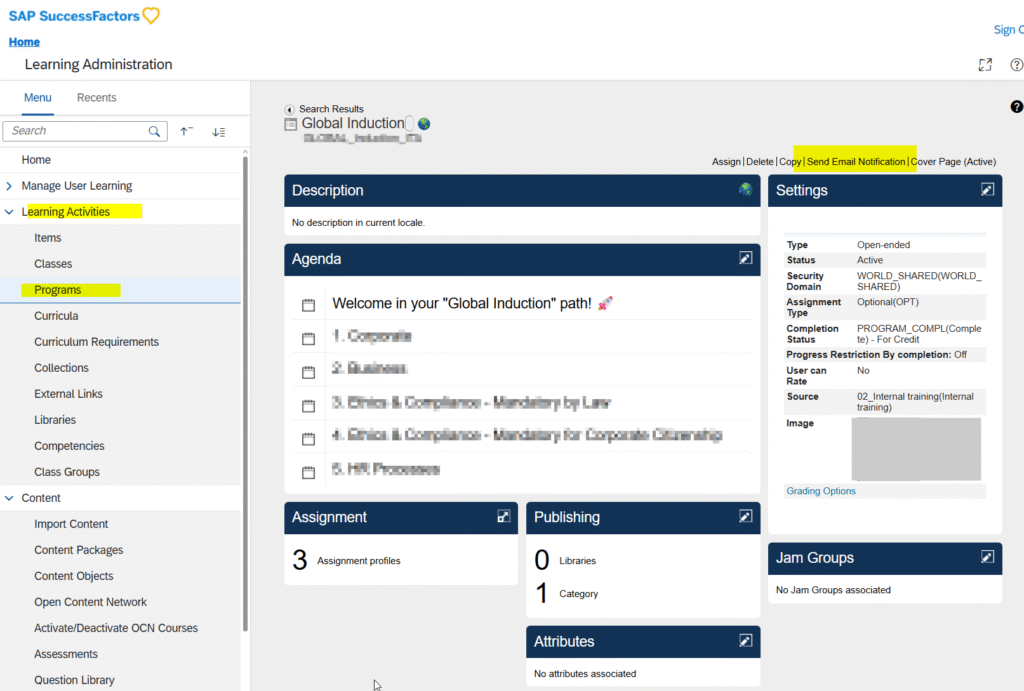
To do it manually, Go to this option:
The Learning Plan Notification is not triggered by the action of assigning items. It is triggered by the impact on the actual Learning Plan. For instance, we have our system to not show assignments more than 90 days in the future, so if there is retraining the learning plan is not changed until 90 days prior to the required date. It is at that time the notification is triggered. https://community.sap.com/t5/human-capital-management-q-a/different-ways-of-learning-item-assignment-and-related-email-notification/qaq-p/12509764
Also, the learning plan notification can be setup to send a notification for added, updated or removed assignments. In our system only added assignments will trigger a notification. https://community.sap.com/t5/human-capital-management-q-a/different-ways-of-learning-item-assignment-and-related-email-notification/qaq-p/12509764
Assignment profile Notifications
- This process uses the ApmSynchronizeStudentChangesAssignmentProfile template ID to create and send notifications
- The automatic process sends notifications when it finds that a user has been moved into or out of an assignment profile https://me.sap.com/notes/2302153/E
Learning Plan Email Notification Settings
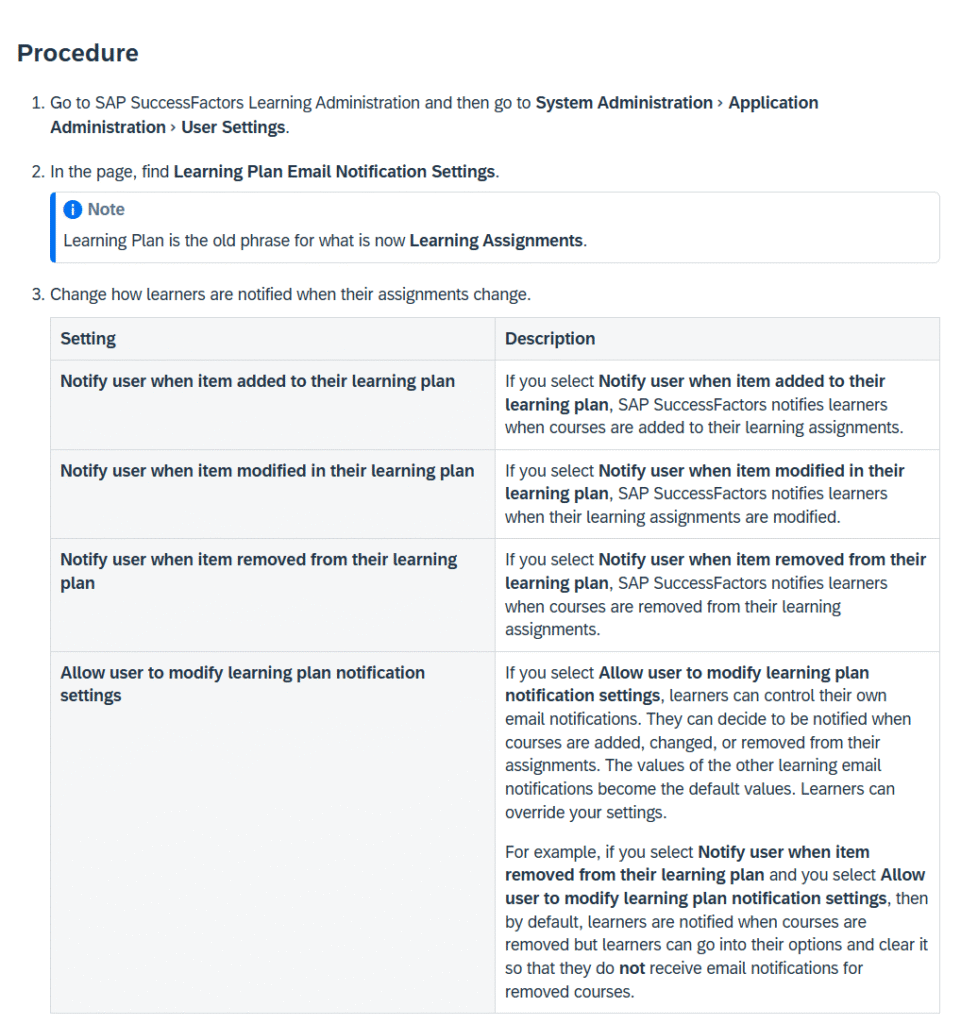
- he learning plan notification automatic process sends notifications to users when an item from the user’s learning plan is added, removed, or modified, and to managers when a learning event is recorded for one of their direct reports
- That is, managers are notified even if the item is not on the user’s learning plan
- This automatic process uses the ApmStudentLearningPlanNotification (users) and the ApmSupervisorLearningPlanNotification (supervisors) templates
- After you configure this automatic process, you must also access the Learning Plan Notification Settings. (System Administration > Application Administration > User Settings > Learning Plan Email Notification Settings)https://me.sap.com/notes/2302153/E
While sending Preview Email the error “An application error occurred” is shown
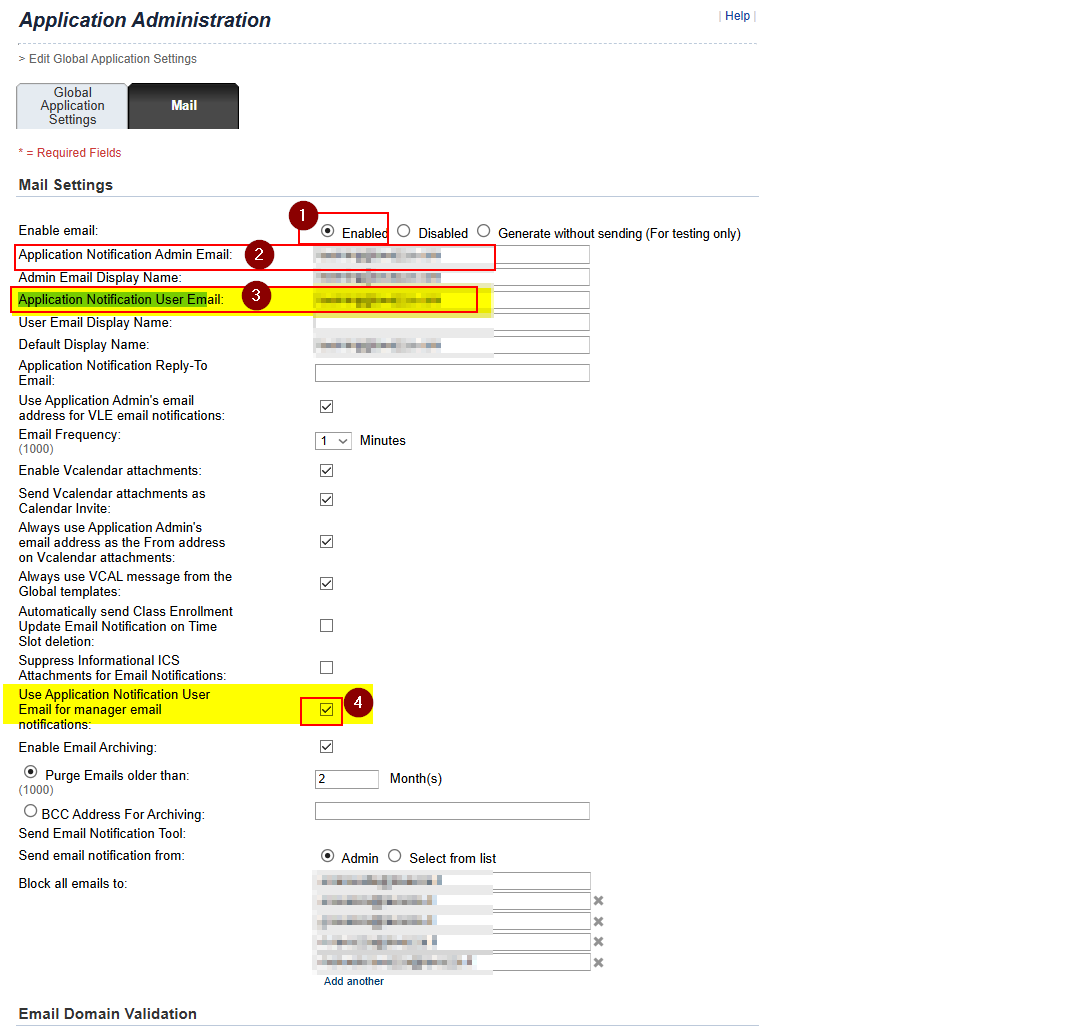
System Configuration > Configuration > Global Application Settings > Mail >
Enable the email server (Enable email: Enabled) > And fill the fields “Application Notification Admin Email” and “Application Notification User Email” >
save
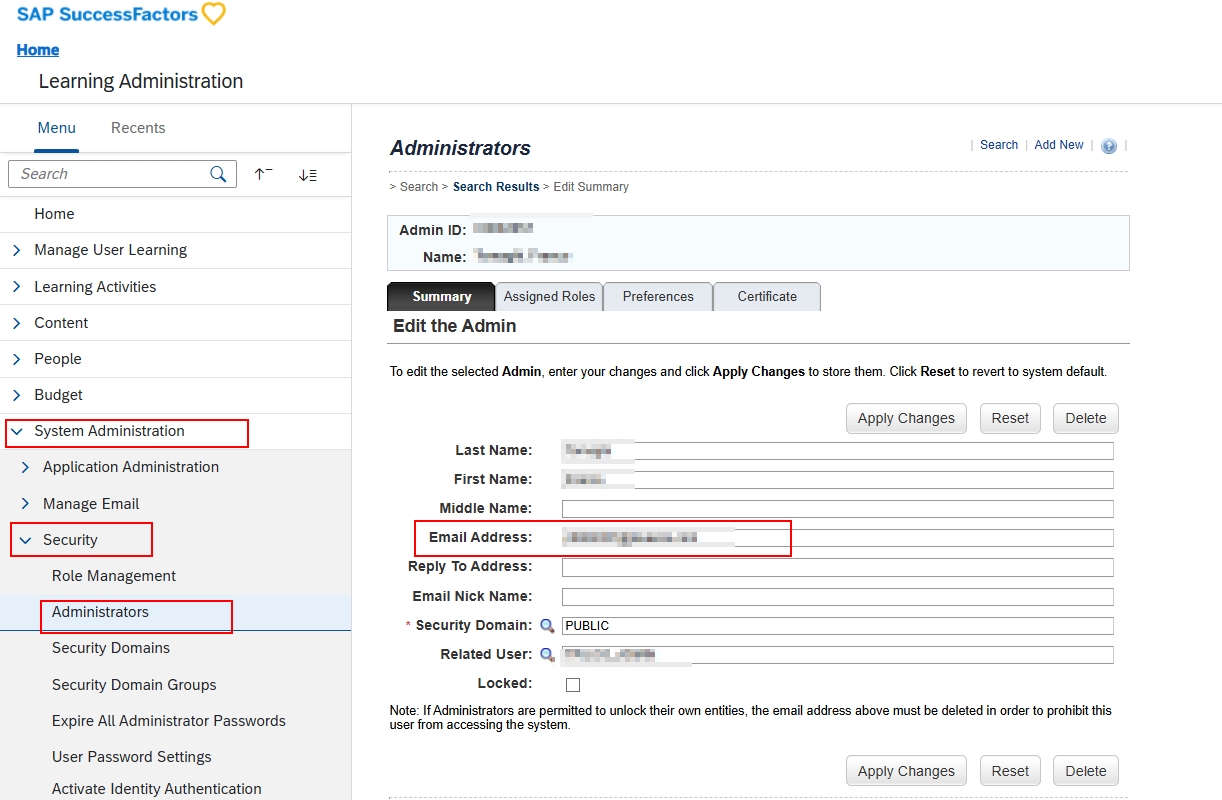
Ensure your admin user has an email
Learning Expiration Email Notification
Schedule the Learning Expiration Email Notification to run with particular threshold and reminder values
The Learning Expiration APM will process the active learning assignments for users that are either overdue or upcoming, based on the required date associated with the learning event and the number of days configured as the threshold in the APM configuration.
The learning expiration automatic process sends notifications when it identifies an item, curriculum, or program for a user where the number of days remaining until the required date is equal to or less than the number of days specified in the Threshold box. This automatic process uses the ApmTrainingExpiration template to send notifications.
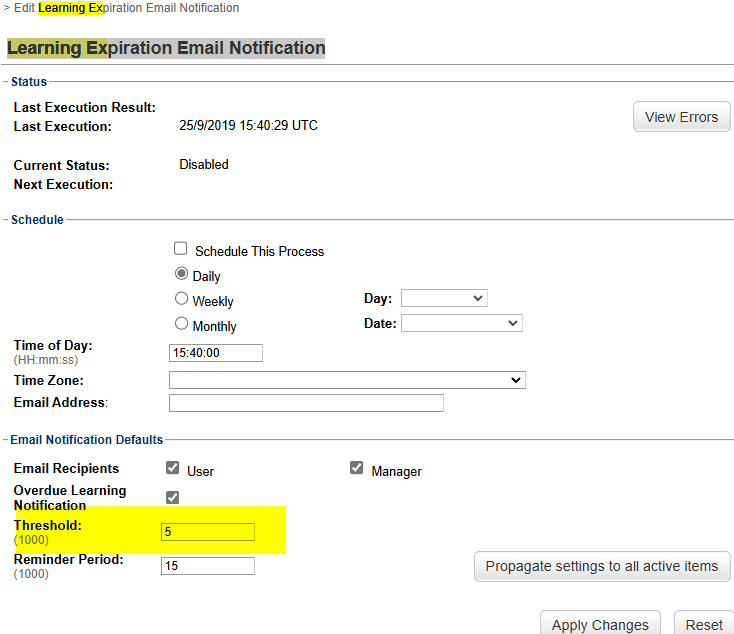
Threshold: This field determines the number of days used to notify users about training assignments that are about to expire. For instance, the APM will select the learning assignments with a required date that is earlier than (current date + threshold days).
Periodic SAP SuccessFactors Learning Reminder Email Notifications
SAP SuccessFactors Learning has automatic processes that periodically send reminder email notifications to users.
In most cases, SAP SuccessFactors Learning sends email notifications because of an event. For example, it sends notifications when users are enrolled in training. But SAP SuccessFactors Learning also uses automatic processes to send periodic notifications to users to remind them to do something, to send a newsletter, and so on. You configure the periodic reminders as automatic processes so that you can control how often they send their messages.
LMS Custom SMTP
https://userapps.support.sap.com/sap/support/knowledge/en/3509138
Virtual Learning Service VLS Notifications
How to receive only one notification when a VLS slot is created.
As default, you will receive two notifications when you create a VLS slot.
This is because one belongs to the BODY email and the other to the VCAL email.
Just delete the BODY and SUBJECT as below.

How to improve the VCAL mail? Look and Feel
Notifications for employees registered in a Class
OK, This is the case when an employee is registered—either by the Learning Admin or through self-registration.
FIrst of all the admin, register the employee through the “classes”.

The student typically will receive the following notification, immediately.

Additionally, will receive the “Event Invite” for each slot in the Agenda.
For example, in the email above there are 5 slots in the class agenda. This means that the user will receive 6 emails. The first one with the registration confirmations (above screenshot) and 5 invites for each slot (one example below). The invites impact in the calendar as below:

Notifications when student is removed from a class
If you remove the student, then the system will send standarly the same quantity of emails. One for the registration (that contains a detail of all the time slots) and one “Invite cancelation” for each time slot.
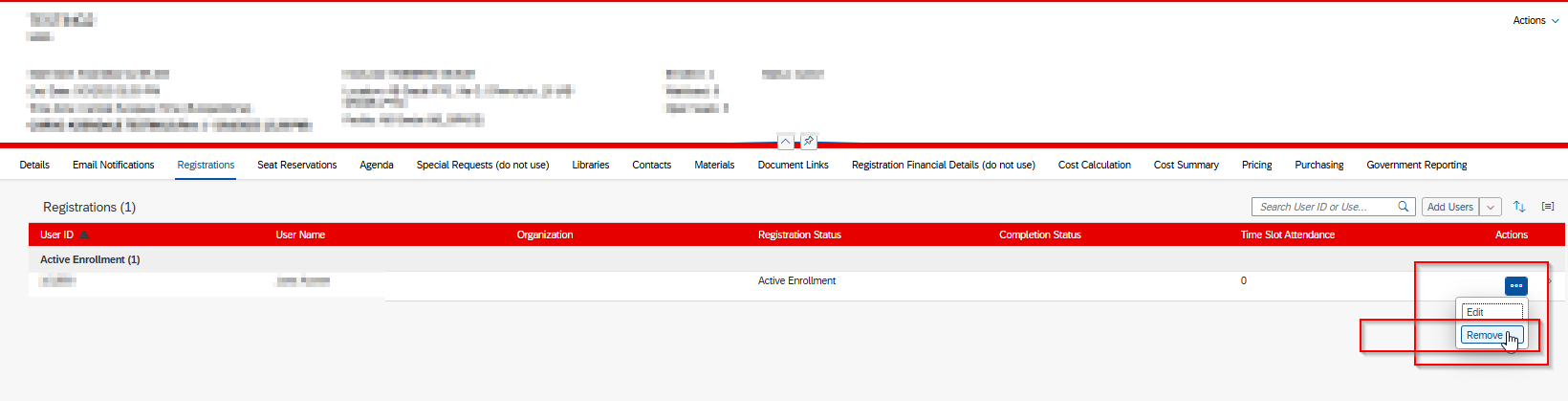
The “cancelation email”:

Learning Invitation doesn’t show the Join button
- Open a web browser and navigate to teams.microsoft.com.
- Sign in with the Surface Hub device account credentials.
- Open the calendar and locate the Teams meeting that failed to display the join button on the Welcome Screen calendar.
- Select the meeting and press the expand icon.
- Below meeting info verify if the Teams meeting join URL is present or not. If missing, follow the PowerShell commands below to check the value of DeleteComments.
- If the Teams meeting URL is present, analyze the hyperlink to ensure it begins with “https://teams.microsoft.com” and doesn’t redirect to a different site. If redirected, the Surface Hub may not understand the URL and therefore not display a join button. Safe Links rewritten URLs, or any other third-party link scanning service isn’t compatible with One-click join. Set up a Safe Links policy to exclude the Surface Hub device account from this feature.
VLS Known Issues
When a VLS class is scheduled, both the instructor and registered users receive the calendar invite. However, when (if) the agenda is modified to a new date/time only the instructor receives a new calendar invite with the updated date and time for the class.
Currently there is an issue with the instructors not receiving the updated VCAL when the Agenda is updated as mentioned in https://launchpad.support.sap.com/#/notes/3238712 but this is the VLE_EVENT_UPDATE. The trigger map shows how the VLE_EVENT_UPDATE is triggered and when one of those are met, the notification is triggered. If you are meeting one of these criteria and the notification is not being received, please contact SAP so we can look into this further.
[…] We have a blog about. Please visit https://corgisap.com/lms-notifications/ […]